Smart Lookup: Check Any Threat Indicator from One Search
Paste an IP, domain, URL, email, phone number, wallet, file hash, or a complete suspicious message. Smart Lookup routes each indicator to the right threat report.
 IsMalicious Team
Threat investigations rarely begin with a perfectly labelled field. An analyst receives an IP address in a firewall alert, a shortened URL in a support ticket, a file hash from an EDR detection, or an entire message copied from a user’s phone. The first task should not be choosing a form and reformatting the evidence. It should be understanding the indicator.
Smart Lookup gives that work one entry point. Paste an IP address, domain, URL, email address, phone number, cryptocurrency wallet, file hash, or a complete suspicious message. isMalicious identifies what it can check and sends the indicator to the matching threat report.
The NIST guide to cyber threat information sharing treats indicators of compromise as one part of a broader body of threat information that also includes tactics, suggested actions, and incident-analysis findings. Smart Lookup accelerates the indicator step while keeping that wider context available to the analyst.
One Search for Seven Indicator Types
Traditional lookup tools make the analyst decide what an indicator is before the tool can help. That works for an obvious IPv4 address. It is slower when a string could be a domain, part of a URL, a wallet, or a hash copied with extra punctuation.
Smart Lookup handles the routing step for:
- IPv4 and IPv6 addresses;
- domains and hostnames;
- complete URLs;
- email addresses;
- international phone numbers;
- cryptocurrency wallet addresses;
- MD5, SHA-1, and SHA-256 file hashes.
For a clean single value, type detection happens in the browser. The interface shows the detected category, then opens the appropriate report when you submit. No parsing request is made on every keystroke.
That small detail matters during triage. The analyst keeps one search habit instead of remembering seven different tools, routes, or request formats.
Paste the Evidence as You Received It
Real evidence usually arrives with context:
“I received a password-reset message from billing@example.test. It asked me to open hxxps://example.test/login and call +1 202 555 0100.”
Rewriting that message by hand creates three problems. It costs time, it can introduce transcription errors, and it separates the indicators from the story that explains why they matter.
When the input needs interpretation, Smart Lookup sends the complete text to its parsing flow. The result is a preview of the indicators it found. You remain in control: inspect the values, open the primary indicator, choose one specific item, or check the complete set.
The parser combines deterministic recognition with an assisted interpretation path for more ambiguous text. If interpretation fails or takes too long, the product falls back to searching the original input instead of silently discarding it.
A Faster Triage Routine
Use the same short routine whenever evidence arrives:
- Paste the original value or message. Keep the surrounding context until the indicators have been identified.
- Review the detected type. A domain and a URL lead to related but different evidence. Confirm the classification before acting.
- Check the most urgent indicator first. In a phishing message, that is often the URL or domain. In an EDR alert, it may be the file hash or destination IP.
- Check all related indicators together. A composite threat report makes the relationship visible without flattening the individual results.
- Open the full report for decisive evidence. The combined view is for scope; the individual report is where you inspect sources, score, detections, and technical context.
- Record the conclusion, not only the verdict. Note why the indicator matters, where it appeared, and what action follows.
This routine works for SOC alerts, abuse reports, suspicious emails, fraud investigations, malware triage, and help-desk escalations. The source changes. The first analytical movement stays the same.
What Smart Lookup Does Not Decide
Automatic type detection removes mechanical work. It does not replace judgment.
A malicious verdict does not prove that every system communicating with the indicator is compromised. A clean verdict does not prove future safety. An unknown result is not the same as a clean result. Shared hosting, CDN addresses, newly registered domains, URL redirections, and reassigned infrastructure all require context.
Before blocking or escalating, ask:
- Did the indicator appear in a confirmed security event or ordinary background traffic?
- Is the value shared infrastructure that could affect legitimate services?
- Which source and observation time support the verdict?
- Does another indicator in the same message strengthen or contradict the assessment?
- Can the decision be reversed quickly if new evidence appears?
Smart Lookup gets you to the evidence sooner. The analyst still owns the decision. Use the Sources guide to examine freshness, contribution, and independent agreement before a high-impact action.
From One Search to a Repeatable Workflow
The web search is the quickest way to investigate an unfamiliar value. Repeated or machine-generated work belongs in an automated flow.
Use the lookup API documentation when the indicators already come from a SIEM, SOAR, EDR, mail gateway, or fraud system. Use bulk enrichment when a log extraction produces tens or hundreds of values. Keep Smart Lookup for the moments where a human receives uncertain evidence and needs a reliable first move.
After the lookup, preserve useful targets in report history and send confirmed response work to Alerts and Action Center. The first search then becomes part of a repeatable investigation instead of an isolated browser tab.
Open Smart Lookup, paste the evidence exactly as you received it, and let the investigation begin with the indicator rather than the form.
Frequently asked questions
- What can I check with Smart Lookup?
- Smart Lookup accepts IP addresses, domains, URLs, email addresses, phone numbers, cryptocurrency wallets, and MD5, SHA-1, or SHA-256 file hashes. You can also paste a longer message containing several indicators and review what it extracts before running checks.
- Does Smart Lookup send every keystroke to a server?
- No. A clean, single indicator is recognized in the browser while you type. The parsing service is called only when the input needs interpretation, such as a suspicious message or a line containing several indicators.
- What happens when a message contains several indicators?
- Smart Lookup presents the detected indicators before any investigation begins. You can open one full report or check the complete set in a composite report, which keeps the indicators together while preserving the evidence for each one.
- Does Smart Lookup make the blocking decision?
- No. It identifies the input type and opens the relevant evidence. The analyst must still assess source quality, recency, asset context, shared infrastructure, and the consequences of blocking or escalating.
- When should I use the API instead of Smart Lookup?
- Use Smart Lookup for uncertain evidence handled by a person. Use the lookup or bulk API when indicators already come from a SIEM, SOAR, EDR, mail gateway, fraud system, or another repeatable machine workflow.
Related articles
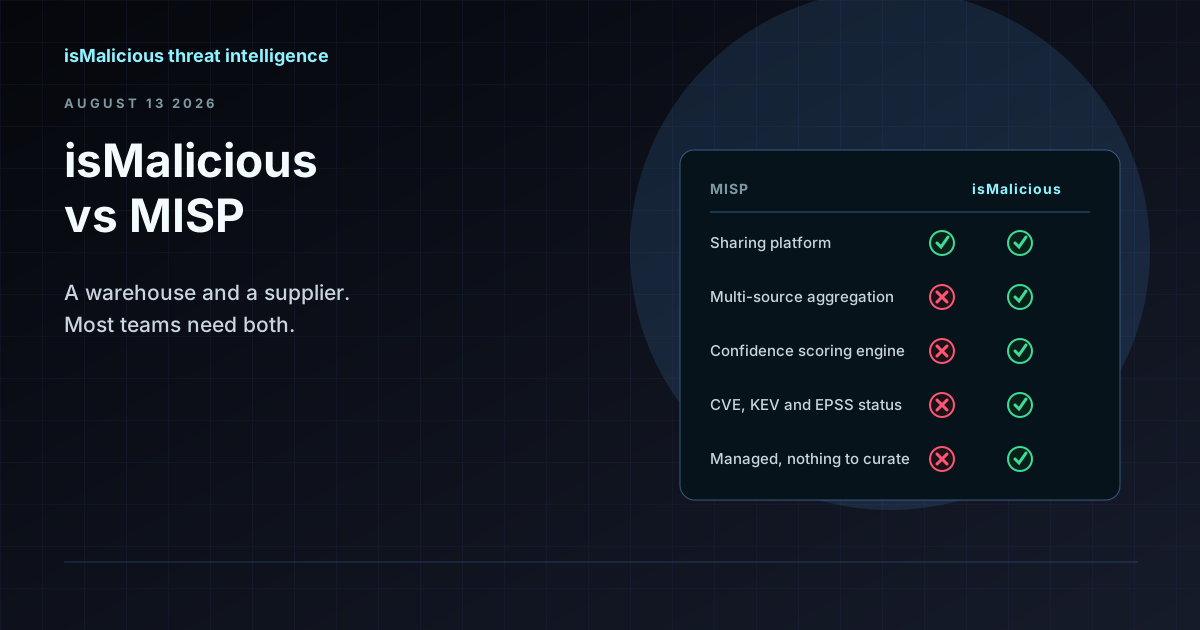 isMalicious vs MISP: Why This Is the Wrong Comparison (and What to Compare Instead)
MISP is where you store and share indicators. isMalicious is where indicators come from. Teams searching for a MISP alternative are usually looking for a feed, not a replacement platform.
 Bulk IP and Domain Lookups: Designing Indicator Enrichment That Survives Real Volume
One incident produces hundreds of indicators, and per-indicator lookups are where triage stalls. Here is how to build a batch enrichment pipeline that respects quotas, deduplicates properly, and fails gracefully.
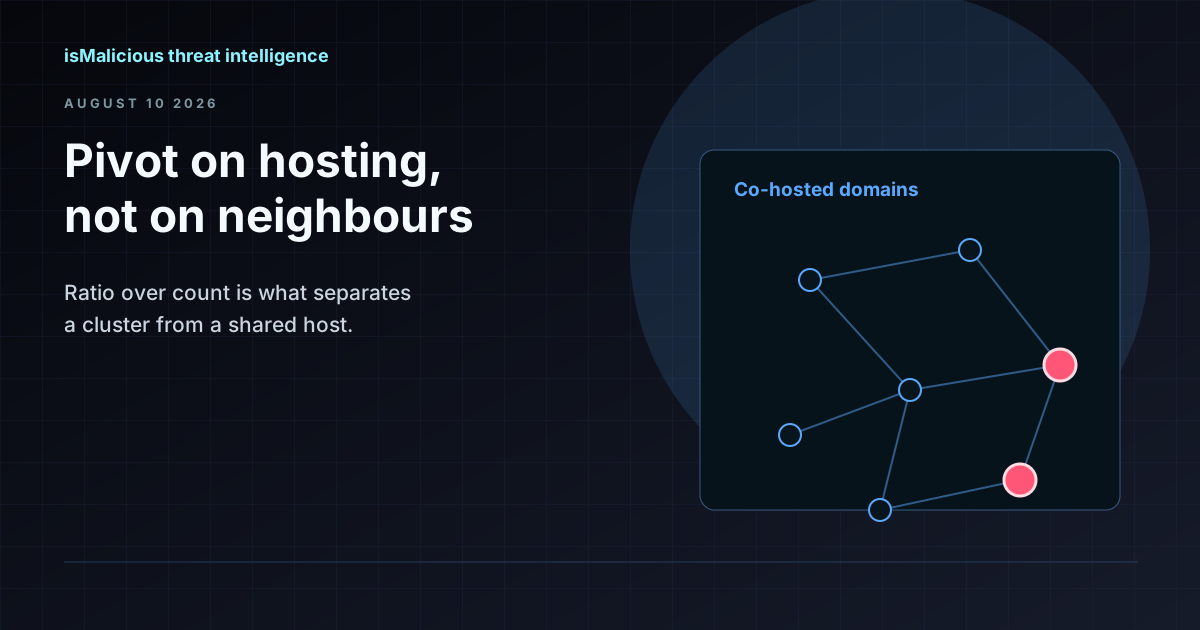 Reverse IP Lookup: Pivoting on Infrastructure Without Drowning in Shared Hosting
A reverse IP lookup turns one indicator into a cluster — or into a thousand innocent neighbours. Here is how to tell the difference, and how to pivot on hosting infrastructure without generating false positives.
Protect Your Infrastructure
Check any IP or domain against our threat intelligence database with indexed records.
Try the IP / Domain Checker