Threat Report History: Recheck, Monitor, and Reuse Evidence
Use isMalicious report history to find earlier lookups, run fresh checks, add indicators to monitoring, create cases, and export a reusable lookup index.
 IsMalicious Team
Threat evidence changes. A domain can move to new infrastructure, an IP can be reassigned, a URL can disappear, and a hash can gain new detections after your first lookup. The useful question is therefore not only “what did we see?” but also “what changed, and what decision follows?”
The isMalicious Reports workspace gives previous lookups an operational next step. Filter the history, run a fresh check, add a supported entity to monitoring, create a case, or export a lookup index for analysis and record keeping.
NIST SP 800-61 Rev. 3 connects effective detection, response, and recovery with cybersecurity risk management. A searchable history supports that connection by helping analysts revisit evidence instead of rebuilding an investigation from memory.
Treat History as an Investigation Index
The Reports table records the target, resolved entity type, and lookup time. It is best understood as an index of analyst activity, not a substitute for the full report or a forensic evidence vault.
Use the filter to answer practical questions:
- Have we checked this domain or IP before?
- When was the last lookup?
- Which entity type did the product resolve?
- Is there already a related investigation path?
- Which records should we recheck or export?
This is faster and safer than searching browser history, chat threads, or personal notes. It also gives the next analyst a shared starting point.
Use Check Again for Current Evidence
The Check Again action opens a new lookup for the selected target. That distinction matters. The original date tells you when the earlier investigation happened; the new report tells you what is visible now.
When comparing the two moments, examine:
- whether the verdict or risk level changed;
- whether new sources now detect the entity;
- whether registration, hosting, or resolution data changed;
- whether related infrastructure appeared;
- whether the entity still overlaps with the affected asset or incident.
Do not reinterpret an old decision using new evidence without preserving the timeline. Record that the conclusion changed and state which observation caused the change.
For an unknown indicator copied from a message or alert, start with Smart Lookup. If the event contains several related indicators, keep their scope visible in a composite report.
Monitor Only When Change Matters
The Watch action lets you add a supported report entity to monitoring. Use it when a future change would alter a real decision, for example:
- a suspicious domain linked to an open phishing investigation;
- an IP communicating with a critical asset;
- supplier infrastructure under active review;
- an indicator associated with a recurring campaign;
- an entity that is currently unknown but high impact.
Avoid monitoring every target you check. A list of monitored items without a reason becomes another noisy feed. Define the trigger before adding the entity: a verdict change, a new detection, new infrastructure, or a deadline for reassessment.
Review monitored entities from Alerts, then prioritize changes that require a response in the Action Center.
Create a Case When the Work Expands
The Case action creates an investigation linked to the report entity and includes report-based evidence. This is the right move when the finding needs more than a single lookup.
Move into Cases when you need:
- a named investigation with a priority;
- several pieces of evidence;
- a timeline of decisions;
- work shared by multiple people;
- an outcome that must survive a shift change.
Keep the case question specific. “Investigate example.com” is a start. “Determine whether example.com delivered the credential-harvesting page reported by Support and identify affected users” gives the team a scope and an exit condition.
Export a Reusable Lookup Index
Eligible plans can export report history as CSV or JSON from the dashboard. The export is intentionally compact: report ID, target, entity type, and creation timestamp.
Use CSV when an analyst needs to sort, filter, or reconcile the index in a spreadsheet. Use JSON when a script, notebook, or internal workflow will consume it. Because the export is an index rather than the complete report payload, retrieve or recheck the full report before making a current threat decision.
The isMalicious API guide explains how to automate fresh lookups. For larger input sets, follow the bulk lookup guide instead of manually opening every historical row.
Build a Weekly Evidence Review
A short weekly review keeps history useful:
- Filter for indicators related to active incidents and priority suppliers.
- Recheck records whose evidence can change quickly.
- Add only high-value entities to monitoring.
- Convert expanding investigations into cases.
- Export the index if another team or workflow needs it.
- Delete records that no longer serve a legitimate operational purpose under your retention policy.
The final step is often missed. Evidence retention should be intentional. Keep what supports investigation, compliance, lessons learned, or an active intelligence requirement. Remove what has no continuing purpose according to your organization’s rules.
Preserve Decisions, Not Screenshots Alone
A screenshot captures an interface at one moment. It rarely captures the query, entity type, source context, analyst conclusion, and later action in a reusable form.
Report history provides the retrieval path. A fresh report provides current evidence. Monitoring provides change detection. Cases provide the durable investigation record. Used together, these features let a team revisit a target without losing why it mattered in the first place.
FAQ
Frequently asked questions
What does isMalicious report history contain?
It lists the indicators you checked, their resolved type, and the lookup date. You can filter the history and use row actions to check an entity again, monitor it, create a case, or delete the entry.
Does Check Again return the old result?
No. Check Again launches a current lookup for the selected entity. Use the original date as historical context and compare the fresh evidence before changing a decision.
Can I export my report history?
Eligible plans can export the lookup index from the dashboard as CSV or JSON. The export contains the report identifier, target, entity type, and creation time rather than every field from each full intelligence report.
When should I add an indicator to Monitored items?
Monitor an entity when future changes matter to an investigation, an exposed asset, a supplier, or a defined intelligence requirement. Avoid watching every one-time lookup.
When should a historical report become a case?
Create a case when a finding needs coordinated investigation, several artifacts, a durable timeline, or ownership beyond a single analyst lookup.
Related articles
 Smart Lookup: Check Any Threat Indicator from One Search
Paste an IP, domain, URL, email, phone number, wallet, file hash, or a complete suspicious message. Smart Lookup routes each indicator to the right threat report.
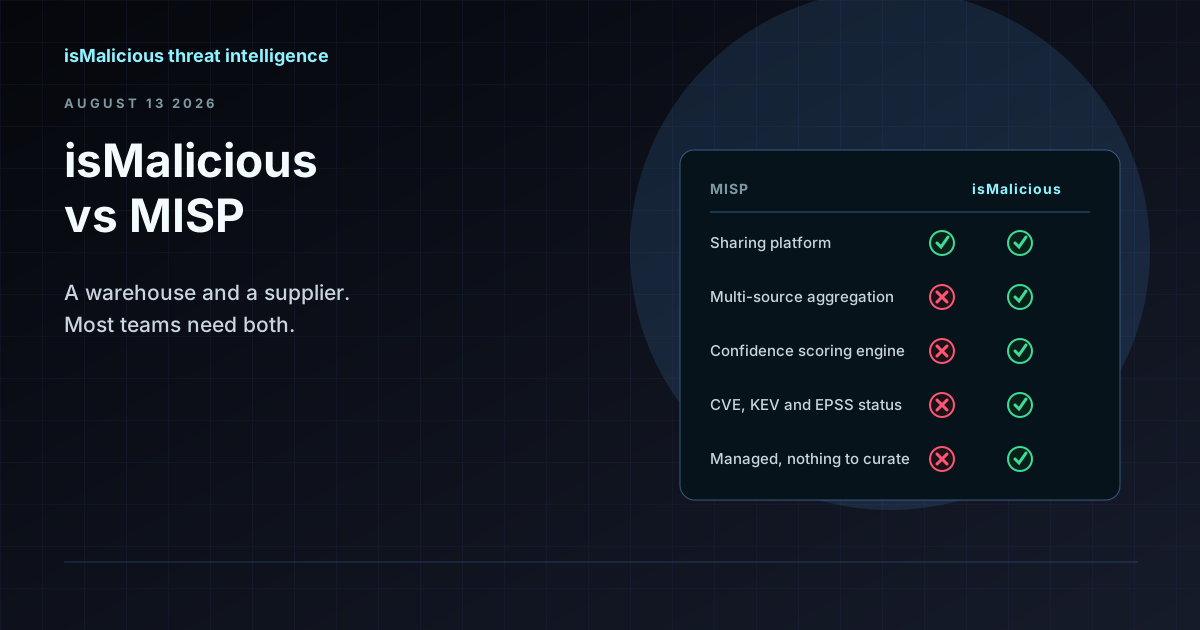 isMalicious vs MISP: Why This Is the Wrong Comparison (and What to Compare Instead)
MISP is where you store and share indicators. isMalicious is where indicators come from. Teams searching for a MISP alternative are usually looking for a feed, not a replacement platform.
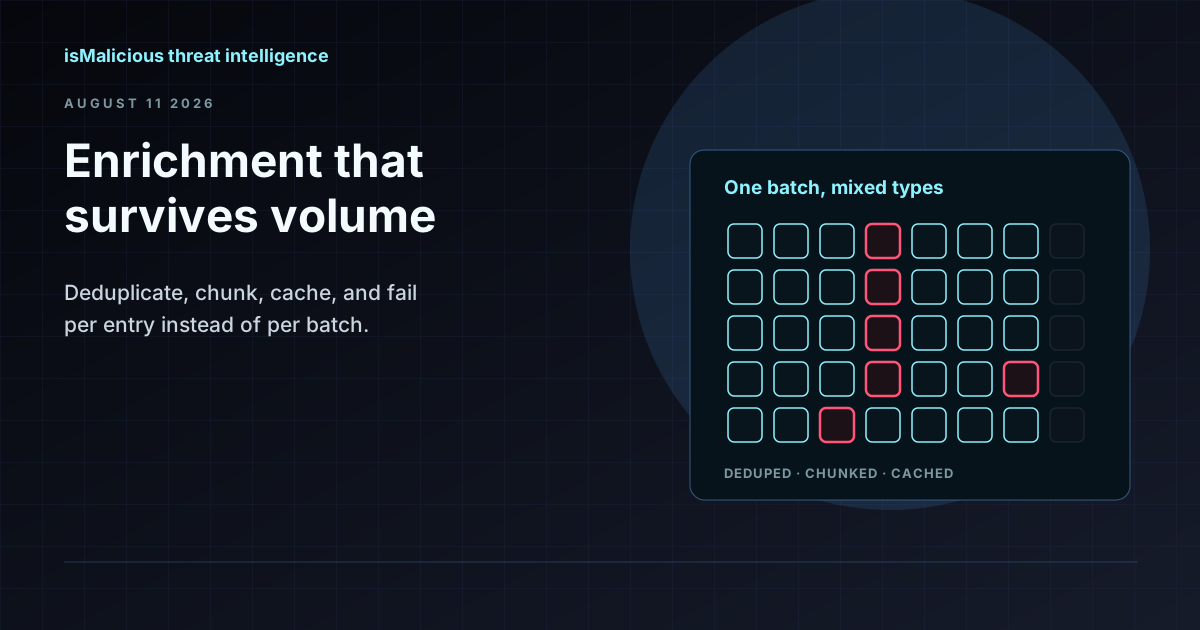 Bulk IP and Domain Lookups: Designing Indicator Enrichment That Survives Real Volume
One incident produces hundreds of indicators, and per-indicator lookups are where triage stalls. Here is how to build a batch enrichment pipeline that respects quotas, deduplicates properly, and fails gracefully.
Check any IP or domain
See what our indexed threat intelligence records say about it.
Try the IP / Domain Checker