Firewall Blocklist Automation: Pulling IP and Domain Feeds Without Outages
External dynamic lists can block malware and phishing at the edge — or break payroll, CDN traffic, and vendor portals. This guide covers staged rollout, allowlists, fail-open vs fail-closed, and measuring hit rates for IP and domain blocklists.
 IsMalicious Team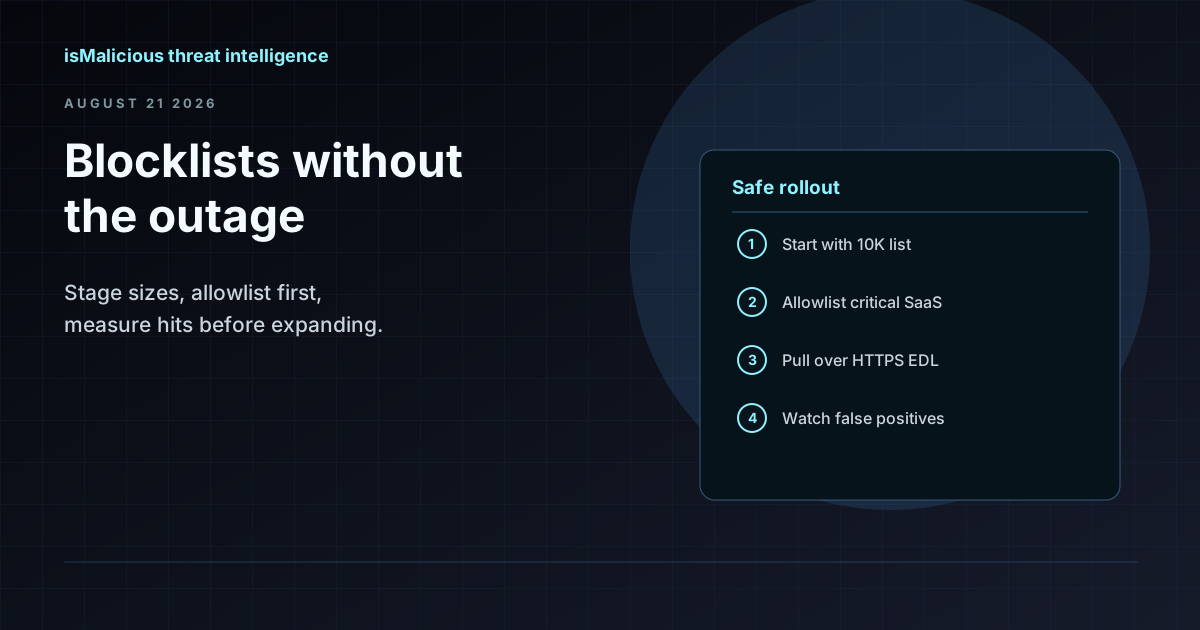
Pulling a threat feed into your firewall sounds straightforward: point the external dynamic list (EDL) at an HTTPS URL, schedule a refresh, and let the box block bad IPs and domains automatically. In practice, the difference between a useful blocklist and a production outage often comes down to allowlists, list size, category selection, and what happens when the feed fails to download.
isMalicious publishes IP and domain blocklists updated every 15 minutes across categories including malware, C2, phishing, spam, Tor exit nodes, VPN/proxy, and scanner/crawler traffic. Lists are available in TXT, JSON, CSV, and vendor-specific formats at sizes of 10K, 100K, and 1M entries. The firewall solution page outlines integration patterns; this guide goes deeper on the operational decisions that keep automation safe.
Before You Point the Firewall at a URL
Answer these questions first. Skipping them is how teams block their own CDN, break a payroll vendor, or fill the helpdesk with false positive tickets.
What are you trying to block?
| Category | Blocks | Risk Profile |
|---|---|---|
| Malware | Known malware distribution hosts | Low FP if list is curated |
| C2 | Command-and-control servers | Low–medium FP |
| Phishing | Credential theft sites | Medium FP (shared hosting) |
| Spam | Spam origin IPs/domains | Medium FP |
| Tor exit nodes | Tor network exits | High FP for privacy-conscious users |
| VPN/proxy | Commercial VPN and proxy IPs | High FP (remote workers) |
| Scanner/crawler | Port scanners, aggressive crawlers | Low FP for inbound; review outbound |
Start with one category — typically malware or C2 — before enabling broader lists. The aggregated "block all" list is convenient but gives you the least control over false positives.
What is your firewall's list capacity?
Firewalls have memory and lookup performance limits. A 1M-entry list that fits in a Palo Alto PA-5220 may choke a smaller appliance. Check your vendor's documented maximum EDL size and measure commit times after import.
isMalicious offers filtered sizes (10K, 100K, 1M) so you can match list size to hardware. Start at 10K, measure hit rates for two weeks, then scale up if the list is generating blocks but missing threats.
Fail-open or fail-closed?
When the HTTPS feed is unreachable during an update:
- Fail open: Keep the last successfully downloaded list. Traffic matching stale entries stays blocked; new threats wait until the feed recovers. Most production networks choose this.
- Fail closed: Remove the list or block all traffic the list would have covered. This prevents stale blocks but can cause a sudden flood of unblocked malicious traffic — or, if implemented poorly, block everything.
Configure your firewall to retain the previous list on download failure and alert your team when refresh fails for more than two consecutive cycles.
The HTTPS EDL Pattern
Most modern firewalls support external dynamic lists fetched over HTTPS. The pattern is the same across vendors:
- Generate a feed URL from your isMalicious account with your API key embedded or passed as a header (see API docs).
- Configure the EDL in your firewall management interface:
- URL:
https://api.ismalicious.com/blocklist/<category>?format=txt&size=100k - Refresh interval: 15–60 minutes (match the feed update frequency).
- Type: IP list, domain list, or URL list depending on category.
- URL:
- Attach the EDL to a security policy — typically outbound deny or inbound deny on untrusted zones.
- Commit and verify the list imported with the expected entry count.
Test in a lab policy before attaching the EDL to your production deny rule. Vendor-specific formats (Palo Alto, Fortinet) are available from the blocklists page.
Allowlists: The Part Most Teams Skip
Blocklists block known-bad entries. Allowlists protect known-good entries from being blocked anyway. You need both.
What belongs on the allowlist:
- CDN and cloud provider IP ranges your business depends on (Cloudflare, Akamai, AWS, Azure, Google Cloud).
- SaaS vendor domains and IPs (Microsoft 365, Google Workspace, Salesforce, payroll providers).
- Your own public-facing infrastructure.
- Partner and supplier endpoints required for business operations.
- DNS resolver and NTP servers.
How to maintain it:
- Export your current blocklist hit log for one week.
- Identify blocked entries that generated helpdesk tickets or business complaints.
- Investigate each with Bulk Check or individual IP / domain lookups.
- If the entry is genuinely legitimate for your environment, add it to the allowlist with a documented reason and expiry date.
- Review the allowlist quarterly. Entries added during an incident may no longer be needed.
Allowlist precedence: Configure your firewall so allowlist entries override blocklist matches. The exact mechanism varies by vendor (Palo Alto uses policy order; Fortinet uses policy action override).
Staged Rollout: From Monitor to Block
Do not flip a 100K-entry blocklist to deny mode on day one.
Phase 1: Import and count (week 1)
- Pull the list into the firewall as an EDL.
- Attach it to a log-only policy that records matches without dropping traffic.
- Measure daily hit counts by category.
Phase 2: Alert on hits (week 2)
- Send EDL match logs to your SIEM.
- Correlate hits with existing alerts. Are you blocking things your IDS already caught, or seeing new matches?
- Sample 20 random hits and investigate each. Estimate false positive rate.
Phase 3: Block in non-critical zones (week 3)
- Enable deny action on guest Wi-Fi, lab networks, or outbound traffic from non-production VLANs.
- Monitor helpdesk tickets and SIEM for complaints or missed legitimate traffic.
Phase 4: Production rollout (week 4+)
- Extend deny policy to production zones.
- Keep the allowlist updated.
- Set up alerting for feed download failures.
Document each phase gate. If Phase 2 shows a 5% false positive rate on phishing domains, fix your allowlist before proceeding — do not hope it improves at scale.
CDN and Shared Hosting False Positives
The most common blocklist false positives come from shared infrastructure:
- A phishing page on a compromised WordPress site gets the entire hosting IP blocked. Your marketing team's blog on the same provider stops loading.
- A CDN edge IP serves both malicious and legitimate content. Blocking the IP breaks every site behind that edge node.
- A cloud function URL (
*.blob.core.windows.net/path) shares infrastructure with an attacker's staging bucket.
Mitigation strategies:
- Prefer domain blocklists over IP blocklists when your threat model allows it. Domain-level blocks are more precise than IP-level blocks on shared hosting.
- Use category-specific lists instead of the aggregated block-all list. A C2 IP list has fewer shared-hosting entries than a broad phishing list.
- Check before blocking. For high-impact zones, route blocklist matches through an enrichment step (API lookup) before the deny action fires.
- Maintain CDN allowlists aggressively. Major CDN IP ranges should be on your allowlist unless you have a specific reason to inspect CDN-origin traffic.
When investigating a false positive, use Bulk Check to see how many of your blocklist entries share hosting with legitimate services. If the ratio is high, switch to a smaller or more targeted category.
Measuring Hit Rates
A blocklist you never maintain is either blocking nothing (misconfigured) or blocking the wrong things (stale entries). Measure these metrics monthly:
| Metric | How to Measure | Healthy Range |
|---|---|---|
| Daily block hits | Firewall traffic logs | Non-zero, stable trend |
| Hits per category | Filter by EDL source | Matches your threat model |
| False positive tickets | Helpdesk tagged "blocklist" | Near zero after allowlist tuning |
| Feed refresh success | Firewall EDL status | 100% over 7 days |
| List entry count | EDL import log | Stable ±5% between refreshes |
| SIEM correlation | Alerts matching blocked IPs/domains | Increasing detection coverage |
Zero hits for 30 days? Your policy may not be attached correctly, the list may be empty, or traffic is bypassing the inspected zone. Verify before assuming you are safe.
Hits climbing 10x week-over-week? Either you are under attack (investigate) or the feed added a large IP range that overlaps with legitimate infrastructure (allowlist fix).
API-Driven Blocklist Management
If your firewall lacks native EDL support or you need custom filtering, pull lists programmatically:
curl -u "$API_KEY:$API_SECRET" \
  "https://api.ismalicious.com/blocklist/malware?format=txt&size=100k" \
  -o /var/lib/firewall-edl/malware.txt
Run this on a schedule (cron, systemd timer, or orchestration tool), validate the file (non-empty, line count within expected range), then trigger a firewall reload. This pattern gives you pre-import validation that native EDL downloads lack — you can abort if the file is corrupt or unexpectedly small.
See the full API reference for authentication, category parameters, and rate limits.
Operational Checklist
- Select one blocklist category matching your highest-priority threat (start with malware or C2).
- Choose list size (10K) appropriate for your firewall model.
- Build an allowlist of CDN, SaaS, and business-critical endpoints.
- Import the list in log-only mode for one week.
- Sample and investigate hits; tune the allowlist.
- Enable deny on a non-critical zone; monitor for one week.
- Roll out to production with feed-failure alerting configured.
- Review hit rates and false positives monthly.
- Scale list size or add categories only after the current list is stable.
Automated blocklists reduce the manual work of copying IOCs into firewall rules. They do not remove the need for allowlists, staged rollout, and ongoing measurement. Teams that skip those steps tend to learn about false positives from the CFO's office — not from their SIEM.
FAQ
Frequently asked questions
What blocklist categories does isMalicious provide?
Malware, C2, phishing, spam, Tor exit nodes, VPN/proxy, scanner/crawler, and aggregated block-all lists. Each category can be pulled separately so you block only what your policy allows.
What formats are available for firewalls?
Plain text (one entry per line), JSON, CSV, and vendor-specific formats for Palo Alto, Fortinet, and others. Most firewalls consume the plain text HTTPS EDL pattern.
How large can blocklists get?
Filtered lists are available at 10K, 100K, and 1M entry sizes to match different firewall memory and lookup performance limits.
Should the firewall fail open or fail closed if the feed is unreachable?
Fail open (keep last good list) is safer for most production networks. Fail closed (block all traffic from the list category) risks outages if the feed endpoint goes down. Document your choice and test feed failure scenarios.
How do I measure whether a blocklist is working?
Track block hit counts per category, correlate hits with SIEM alerts, and monitor helpdesk tickets for false positive reports. A list with zero hits for 30 days may be misconfigured; a list generating daily outage tickets needs allowlist tuning.
Related articles
 IPv6 Threat Intelligence: Reputation Beyond IPv4
Build IPv6 threat intelligence with correct normalization, prefix context, dual-stack logging, enrichment, and reputation decisions that avoid overblocking.
 SOC Alert Fatigue: How Threat Intelligence Reduces False Positives Without Hiding Real Attacks
Alert fatigue is not a staffing problem alone. SOC teams need better evidence, source quality, confidence bands, and enrichment workflows that turn noisy alerts into defensible decisions.
 ASN Reputation for Threat Intelligence: How Autonomous System Intelligence Improves Prioritization and Hunt Programs
An IP address is a snapshot; an autonomous system (ASN) is a neighborhood. Learn how to use ASN context safely for triage, fraud, and security operations—without mistaking a giant cloud for a monolithic "bad host".
Check any IP or domain
See what our indexed threat intelligence records say about it.
Try the IP / Domain Checker