How to Check if Your Website Is Under Attack: Signs, Where to Look and the First Hour
Every public website is attacked; the question is whether something got through. The signs to look for, the logs, files, search results, DNS records and certificates that confirm or rule them out, how to tell an attack from a crawler or a traffic surge, and the first hour once you know.
 IsMalicious Team
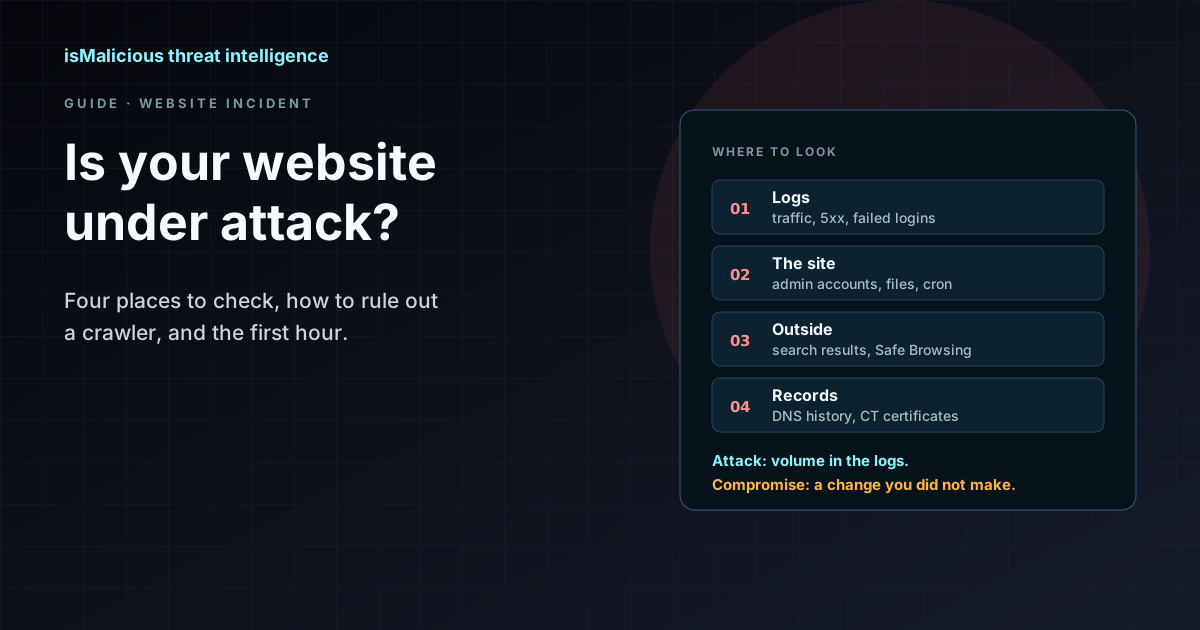
To check whether your website is under attack, compare what it is doing now with what it normally does, in four places: the request logs (traffic, errors, logins), the site itself (accounts, files, scheduled tasks, outbound connections), what outsiders see (search results, browser warnings, blocklists), and the records you own (DNS and TLS certificates). An attack in progress shows up in the logs as volume or patterns that do not fit your traffic. A successful compromise shows up as a change nobody on your side made. This guide lists the signs, where to confirm each one, how to rule out a crawler or a genuine surge, and what to do in the first hour once you know.
Attacked or compromised: two different questions
Any site with a public IP address is scanned, crawled and sent login attempts every day. That background is not an incident, and treating it as one wastes the morning. The question that matters is whether something succeeded: did an attacker log in, write a file, add a page or change a record? Keep the two apart, because they call for different responses. A flood or a brute-force run is handled with rate limits, blocking and your provider. A compromise is handled as an incident: evidence first, then containment, then cleanup.
The signs, and what each one can mean
| Sign | What it can mean | Check first |
|---|---|---|
| Requests or 5xx errors far above a normal hour | Denial of service, an aggressive crawler, or a genuine surge | Requests per minute by path, client IP, network and user agent |
| Bursts of failed logins or password-reset requests | Brute force, credential stuffing or password spraying | Authentication logs: failures per account and per IP, then any success |
| An administrator account nobody created, or a role that changed | Account takeover or a backdoor account | CMS audit log and the users table |
| New or modified files, especially scripts in upload folders | Web shell, backdoor or spam injection | Compare against your repository or the CMS checksums |
| Script tags, iframes or redirects you did not write | Card skimmer, malicious redirect, injected ads | The HTML actually served, fetched as a mobile browser and as Google |
| A scheduled task or process you do not recognize | Persistence, cryptomining, spam sending | Crontabs, timers, the CMS scheduler, running processes |
| Outbound connections from the web server to unknown hosts | A backdoor calling home, data leaving, mail being relayed | Established connections and egress firewall logs |
| The home page replaced by a message | Defacement: the attacker has write access | Treat as a confirmed compromise |
| Browser warnings or "This site may be hacked" in search results | Google detected malware, phishing or spam on your pages | The Security issues report in Search Console |
| Pages you never published in search results | Spam pages injected into your site | A site:yourdomain search and your sitemaps |
| A DNS record or TLS certificate you did not request | Registrar, DNS or hosting account compromise, or a forgotten record | DNS history and Certificate Transparency logs |
Google lists the same core signs for hacked sites in its FAQ for hacked sites: unusual traffic spikes, especially from unrelated search terms, visitors reporting malware, newly created administrator accounts and suspicious new pages.
Where to look
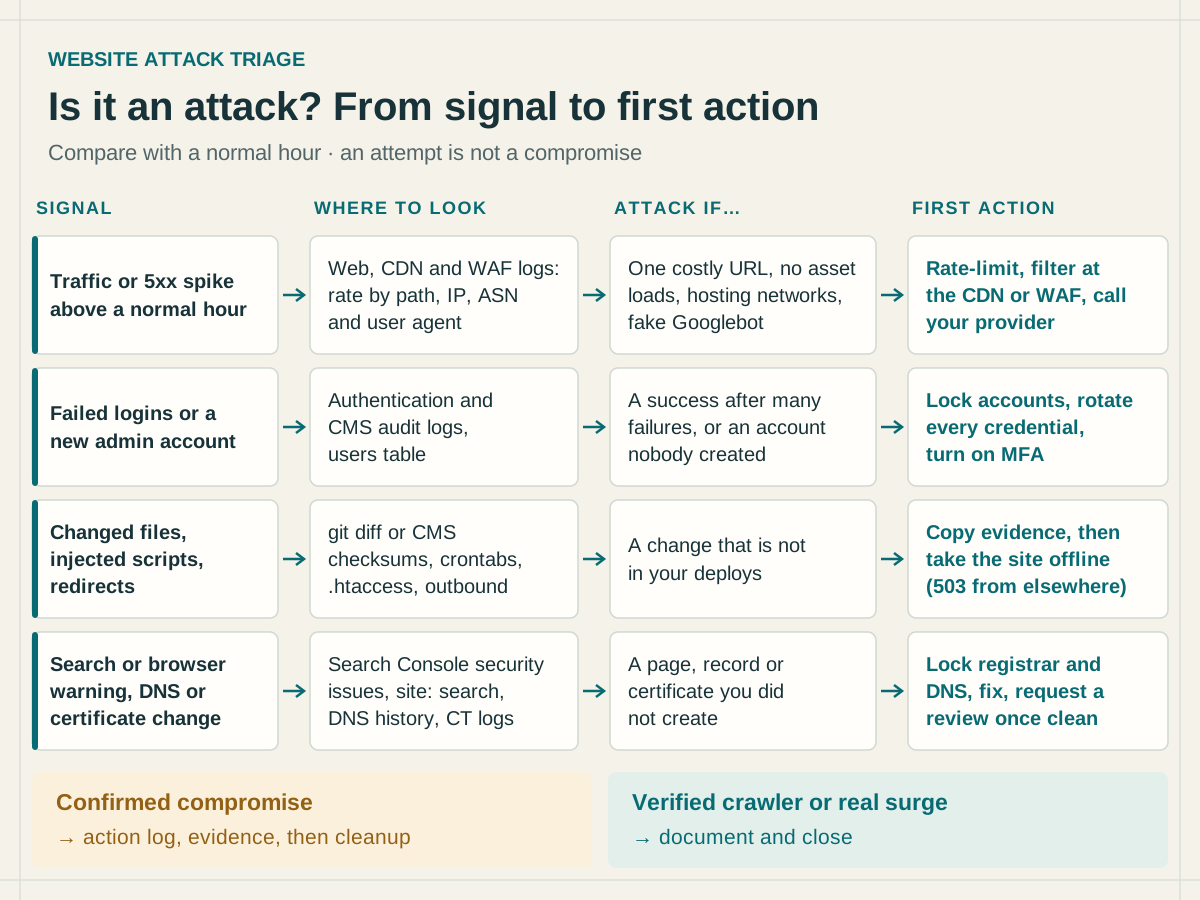
Web server, CDN and WAF logs
Pull one hour around the first sign and the same hour on a normal day. Count requests per minute, the share of each status code, the top paths, the top client IPs and their networks, and the user agents. Then filter on the paths attackers care about: the login page, the password reset, the admin area, XML-RPC or API endpoints, search and cart pages that are expensive to render.
Two cautions. First, logs kept only on the server can be edited by whoever controls it. The OWASP Logging Cheat Sheet recommends tamper detection and copying log data to read-only media as soon as possible, and the OWASP Top 10 counts logs stored only locally, without a proper backup, among its Security Logging and Alerting Failures. Second, a CDN or WAF in front of the site holds the client addresses your origin may not see; read its logs, not only the origin's.
Application and CMS audit logs
The events to look for are the ones OWASP says should always be logged: authentication successes and failures, use of administrative privileges and changes to user accounts. The single most useful query is a successful login that follows a run of failures, or a successful login to an admin account from a network that account never used before. If your CMS does not keep these events, that gap is the first thing to fix after the incident.
Files and configuration
Compare what is on the server with what you deployed. If the site is in version control, git status and git diff on the server show every change. For WordPress, WP-CLI's wp core verify-checksums and wp plugin verify-checksums compare core files, and plugins from the WordPress.org directory, with the published releases. Without either, list recently changed files (find /var/www -type f -mtime -7), but read modification times as leads, not proof: they can be reset by anyone with write access.
Look at server configuration as well as code. Google's guide to the Japanese keyword hack notes that attackers often use .htaccess rules to redirect users or generate spam pages, and add or modify sitemaps to get their pages indexed faster. Script files in an uploads folder, which should only ever hold media, are a classic web shell location.
Scheduled tasks, processes and outbound connections
Attackers who get in want to stay in. List the crontab of every user that runs the site and the system cron directories, check systemd timers (systemctl list-timers), and the CMS's own scheduler. Then list established outbound connections from the web server user (ss -tnp) and read the egress firewall logs. A web server rarely needs to open connections to arbitrary hosts; one that does is either calling an API you know about or doing something you did not ask for.
Hosting panel and access
Check the accounts around the site, not only inside it: hosting panel users and their login history, FTP and SFTP accounts, SSH authorized_keys files, database users, API keys. Do the same at your registrar and DNS provider. And check who owns your property in Search Console: Google warns that attackers add themselves as verified owners so they can change settings such as sitemaps.
Search results and browser warnings
Hacked content is often cloaked: the site shows a normal page to its owner and spam to Google, or redirects only visitors coming from search or from a phone. Google's page on checking whether a site was hacked suggests three checks:
- the Security issues report in Search Console, which names the issue type (Hacked: Malware, Code injection, Content injection or URL injection, Deceptive pages, Harmful downloads and others) with example URLs;
- a
site:search on your domain, which lists indexed pages, including any an attacker added; - the URL Inspection tool, which shows a page as Google fetched it.
Google's #NoHacked post on knowing whether a site is hacked lists the warnings visitors may see, from "This site may be hacked" in search results to "Deceptive site ahead" and "The site ahead contains malware" in the browser, and adds a mobile check: open the site in a private mobile browser and compare it with the desktop version. It also warns that a clean Safe Browsing status does not mean the site is clean; a site hacked to serve spam may not be flagged as malicious.
DNS records and certificates
An attacker who controls your registrar or DNS account does not need your server at all. Compare your current records with what you set: an A record pointing to a host you do not know, a new MX, changed name servers, a new TXT verification record, a CNAME left pointing at a service you no longer use. The past matters too: passive DNS shows when an address first appeared, so you can tell a record changed yesterday from one that has always been there.
TLS certificates leave a public trace. Certificate Transparency logs are, in the words of the Certificate Transparency project, append-only ledgers of certificates, and monitors can alert a domain owner when a certificate for their domain appears. A certificate for your domain or a subdomain that your team did not request means someone could pass the certificate authority's validation, usually through DNS or a host serving that name. A CAA record, which lists the authorities allowed to issue for your domain, narrows who can do that.
Attack, crawler or traffic surge?
Most spikes are not attacks. Three tests settle most cases.
- Is the crawler who it claims to be? A user agent string is free to fake. Google's crawler verification is a reverse DNS lookup on the client IP, a check that the name ends in
googlebot.com,google.comorgoogleusercontent.com, and a forward lookup that must return the same IP; at scale, match the IP against the ranges Google publishes as JSON files. - Does the traffic look like readers? Real visitors arrive through referrers you can trace (a campaign, a mention, a search result), spread across many pages, and load images, scripts and stylesheets. A flood tends to hammer one or a few URLs, often the most expensive ones, skips the assets and comes from hosting networks rather than consumer ISPs.
- Who are the top clients? Take the IPs and networks responsible for most of the abnormal requests and look them up. The IP reputation check described below shows whether an address is listed, by which sources, for which categories (scanning, brute force, botnet C2, spam), with its ASN, geolocation and first and last seen dates. An address that is not listed is not cleared: the OWASP Credential Stuffing Prevention Cheat Sheet notes that proxy networks keep the volume per IP low, so look for one address trying many accounts and for low, steady traffic spread across many IPs.
For floods, the UK NCSC's DoS guidance on testing and monitoring asks for monitoring that lets you spot an attack when it begins, and notes that upstream providers may offer feeds showing traffic aimed at your service even when they filter it. Prevention and mitigation are covered in our guide to DDoS attacks.
The first hour once something succeeded
Speed matters, but order matters more: cleaning first destroys the evidence that tells you how the attacker got in, and restoring before you know that reopens the same hole.
- Start a log of actions. France's ANSSI, in a CERT-FR reflex sheet on qualifying an incident (written for network edge devices, but the rule is general), asks for a running log from the start: date and time, who acted, what was done and on which accounts and machines, kept off the compromised system, where the attacker could read it.
- Preserve evidence. Copy the web, WAF, authentication and firewall logs off the server, snapshot the server and its disk, dump the database, and keep a copy of any web shell or injected file before deleting it. Cybermalveillance.gouv.fr, the French government's assistance platform, lists the same steps in its defacement response sheet: recover the logs, make a full copy of the attacked machine and its memory.
- Contain. Google's quarantine guidance is to take the site offline, for example by pointing DNS to a static page on a different server that answers with a 503, and to tell your hosting provider. Blocking the attacking IPs buys minutes, not safety.
- Rotate every credential. Google's list is all site users and accounts, including FTP, database, system administrators and CMS. Add the hosting panel, SSH keys, API keys and secrets stored in configuration files, the registrar and the DNS provider, and invalidate active sessions. Turn on multi-factor authentication wherever it was missing.
- Find the entry point, then restore. An outdated plugin, a reused password or an exposed admin page: until you know which, a restore only resets the clock. Restore from a backup made before the first sign of compromise, patch the entry point, and only then go back online.
- Notify. Your hosting provider, your customers if they were exposed, and the police if you file a complaint. Under Article 33 of the GDPR, a breach of personal data must be notified to the supervisory authority without undue delay and, where feasible, within 72 hours of becoming aware of it, unless it is unlikely to result in a risk to people. Once the site is clean, request a review from the Security issues report; Google says reviews take several days to several weeks and that resubmitting while one is pending can make them longer.
How isMalicious helps
isMalicious does not read your server, logs or files, so it cannot tell you on its own that your site is compromised. It answers the outside questions.
- Is my domain already listed? The domain reputation check returns a 0–100 risk score, the threat categories (phishing, malware, spam, C2…), the sources behind each match, WHOIS context and the domain's reputation history. Run it when visitors report warnings: a listing tells you which feed flagged you and since when.
- Is this page flagged? The URL scanner checks one URL against Google Safe Browsing and phishing and malware feeds in the same lookup, with the TLS certificate's issuer, validity and age and the age, registrar and reputation of the domain. Use it on the pages named in the Security issues report and on the destinations of any redirect you found.
- Did my DNS change? The DNS history lookup shows past resolutions from AlienVault OTX passive DNS with first and last seen dates, next to the current A, AAAA, MX, NS, TXT, CNAME, CAA and DNSKEY records, and a one-click reputation check on each address the domain pointed to.
- Who is hitting me? The IP reputation check gives the score, sources, categories, ASN and geolocation of the addresses at the top of your logs. As above, "not listed" means no source reported it, not that it is harmless.
If your domain shows up on a phishing feed, the cause is often a compromised page on your site used to host a lure; our article on compromised domains in phishing explains why attackers prefer them.
What to do now
- Verify your site in Google Search Console and read its Security issues report; add a mobile, private-mode check of your home page and your top landing pages.
- Ship web, WAF and authentication logs off the server, and make sure they record login successes and failures and admin actions.
- Keep a known-good reference: version control on the server or CMS checksums, and the date of your last backup you would trust.
- Turn on multi-factor authentication for the CMS, the hosting panel, the registrar and the DNS provider.
- Publish a CAA record and subscribe to a Certificate Transparency monitor for your domain.
- Write the first hour down now: who starts the log, who calls the host, where the snapshots go, who notifies.
FAQ
Frequently asked questions
How can I tell if my website is under attack right now?
Look at your web server, CDN or WAF logs for the last hour and compare them with a normal hour: requests per minute, the share of 4xx and 5xx responses, the most requested paths, and the client IPs, networks and user agents behind them. Hundreds of POST requests to a login page, one expensive URL hit far more than usual, or one network sending most of the traffic are signs of an attack in progress. Then check whether any of it succeeded: a login that worked after many failures, a new admin account, or a file you did not deploy.
How do I know if my website has been hacked?
A hacked site shows changes you did not make: an administrator account nobody created, files that differ from your repository or your CMS checksums, script tags or redirects in the served pages, pages you never published appearing in a site: search on Google, an unknown scheduled task, DNS records or TLS certificates you did not request, or a warning in the Security issues report of Google Search Console. Hacked content is often hidden from the owner, shown only to search engines or to mobile visitors, so check as Google and as a mobile browser in private mode, not only as yourself.
Is a sudden traffic spike always an attack?
No. A campaign, a press mention or a search crawler can all produce one. Legitimate visitors arrive through referrers you can identify, spread across many pages and load images, scripts and stylesheets; floods tend to hit one or a few URLs, skip assets and come from hosting networks. A client claiming to be Googlebot is Googlebot only if its IP passes Google’s reverse and forward DNS check or appears in the IP ranges Google publishes.
What should I do first if my website was hacked?
Start a written log of every action with its time and author, kept off the compromised server. Copy the logs and take a snapshot of the server and database before cleaning anything. Take the site offline, for example with a 503 page served from another server, tell your hosting provider, and change every password and key: CMS, hosting panel, FTP or SFTP, SSH, database, registrar and DNS. Restore from a backup made before the first sign of compromise only once you know how the attacker got in, then fix that entry point before going back online.
Can isMalicious tell me whether my website is hacked?
Not by itself: it does not read your server, logs or files. It answers the outside questions. The domain reputation check and the URL scanner show whether your domain or a given page is listed by threat feeds or Google Safe Browsing, the DNS history lookup shows past and current DNS records, and the IP reputation check shows whether the addresses in your logs are listed for scanning, brute force or other abuse.
Related articles
 Domain Shadowing: Detect Compromised DNS at Scale
Detect domain shadowing by monitoring DNS changes, certificate issuance, subdomain behavior, account security, and infrastructure relationships.
 WHOIS Lookup for Security Investigations: Reading a Record After Redaction
Privacy services stripped the registrant name out of most WHOIS records, but the fields that matter for triage survived. Here is what a WHOIS record still tells an analyst, and how to read it.
 The Kratos Phishing Kit Takedown: 200 Servers Gone, 1,800 Copies Still Out There
German and US law enforcement dismantled Kratos, the AiTM phishing service behind roughly 15,000 Microsoft 365 campaigns a month. The infrastructure is offline, but the kit is not. Here is what to hunt for now.
Check any IP or domain
See what our indexed threat intelligence records say about it.
Try the IP / Domain Checker